As far as the customer is concerned, the interface is the product --Jef Raskin
The goals for this lab assignment are to
By this point in the semester, everyone should have a github account. Most people are in teams of two for this assignment, so your repository should have the form
$ cd cs71
$ git clone git@github.swarthmore.edu:cs71-s19/03-photobooth-USER1-USER2.git
If you are working in a team, be professional. As part of your homework submission, you will be asked to fill out a performance evaluation of your teammate.
In this assignment, you will implement an application inspired by Instagram's face filters. This application allows you to add images (called accessories) to a base image and save the result. The user can position, scale, and delete the changes they make to the base image.
Your implementation should be based on the design documentation of the following sections. Please skim through the document before starting.
I recommend implementing the application one "user story" at a time.
We will use the following terms throughout:
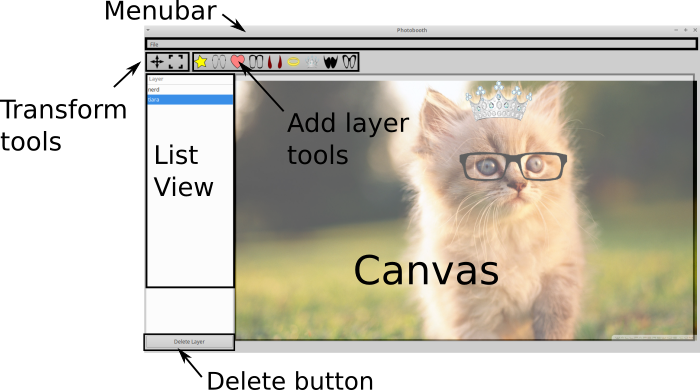
The application interface consists of a main window which contains a
Each user story represents a feature that the application should support. Implementing a user story may require modifying several classes. You should test each user story before implementing a new one.
The user can quit the application by selecting File -> Quit
The user can quit the application by closing the main window. The main window can be closed from the 'little X' on the top right corner, or from the window menu.
The user can change the base image (stored in the CompositeModel) by selecting File -> Open. This option should open a dialog box to allow the user to browse for a file. If the file cannot be loaded, you should display a message box to tell the user.
The user can save the composite image (stored in the CompositeModel) by selecting File -> Save As. This option should prompt the user for a filename and then save the file. If the file cannot be saved, you should display a message box to tell the user.
The user can add an accessory to the base image by clicking any of the accessory buttons from the tool bar (for example, star, heart, glasses, moustache, tiara, etc). Adding an accessory should create a new layer. The new layer should be listed in the left ListView and selected by default. The image corresponding the new layer should be shown on the Canvas (at an arbitrary position).
The user can delete an accessory by selecting it from the ListView and pushing the delete button.
The user can move an accessory by first selecting its layer and activating the Move tool from the toolbar. Using the tool, they can left click and drag on the Canvas to change the position of the accessory.
The user can scale an accessory by first selecting its layer and activating the Move tool from the toolbar. Using the tool, they can left click and drag on the Canvas to change the rotation of the accessory.
This application uses the model-view-controller design pattern to separate the management of the composite image from the display and user editing. This design has several advantages:
The major components of the application are the front-end, managed by the MainWindow, and the back-end, managed by the CompositeModel class.
You will implement the following classes:
src/MainWindow.cs) - The MainWindow manages the view-controller components of the design. It creates the Menubar, Toolbar, ListView, and Canvas. It registers callbacks on each of these components and then modifies the back-end model in response to the user's commands. MainWindow also registers a callback on the CompositeModel so it can update its display (in the Canvas and ListView) when the backend changes. The MainWindow also creates and updates the TransformTool to edit the selected layer. The TransformTool been given to you in src\TransformTool.cs.src\CompositeModel.cs) - The CompositeModel implements the model component of the design. It contains the base image, the composite image, and a list of Layer. Layer has been implemented for you in src\Layer.cs.
Containership Diagram
The backend model is implemented in CompositeModel. The CompositeModel class manages a list of layers, e.g. supports an API for adding, editing, and deleting layers. It also supports loading the base image and saving the composite image.
Each Layer represents an accessory that the user added to the base image. Whenever the user changes a layer, the composite image recomputes itself by re-applying each layer with the original image. Users (such as the front-end) can register a callback to learn when the composite image changes.
All raw images are represented using Gdk.Pixbuf, which is a cross-platform image buffer class.

Your implementation must implement the public API specified below but you may define additional helper functions if you like. Unless you have good reason to do otherwise, all member variables should be declared private.
// Private data members
list of layers of type `List<Layer>`
base image of type `Gdk.Pixbuf`
composite image of type `Gdk.Pixbuf`
list of callbacks to be invoked when the composite image changes
list of callbacks to be invoked when the layer list changes

// Constructors
public CompositeModel()

// Public Properties
CompositeImage // returns composite image; not settable
NumLayers // returns number of layers; not settable

// Public methods

// requires: non-null callback method or listener class
// effects: removes the callback from the list of layer cbs; noop if not found
public void RemoveLayerChangedCallback

// requires: non-null callback method or listener class
// effects: adds the callback to the list of layer cbs
public void AddLayerChangedCallback

// requires: non-null callback method or listener class
// effects: removes the callback from the list of composite image cbs; noop if not found
public void RemoveCompositeChangedCallback

// requires: non-null callback method or listener class
// effects: adds the callback to the list of composite cbs
public void AddCompositeChangedCallback

// requires: 0 <= id < NumLayers
// effects: removes layer with id from our list;
//     updates the composite image; and invokes composite and layer cbs
public void DeleteLayer(int id)

// requires: 0 <= id < NumLayers
// effects: scales the layer with id uniformly by size;
//     updates the composite image; and invokes composite image cbs
public void ScaleLayer(int id, double size)

// requires: 0 <= id < NumLayers
// effects: moves layer with id to position X (horizontal) and Y (vertical)
//     relative to the base image's top left corner;
//     updates the composite image; and invokes composite image cbs
public void MoveLayer(int id, double x, double y)

// requires: 0 <= id < NumLayers
// effects: Returns the name of layer with id (note: can be "")
public string GetLayerName(int id)

// requires: non-empty pixels
// effects: Adds a new layer having the given image and name; invokes layer cbs
public void AddLayer(Gdk.Pixbuf pixels, string name)

// requires: nothing
// effects: Saves the image with the given filename.
//     Returns true if successful; false otherwise.
public bool SaveCompositeImage(string filename)

// requires: nothing
// effects: Sets the base image with the given filename.
//     Initializes the compoiste image.
//     Returns true if successful; false otherwise.
public bool LoadBaseImage(string filename)For this design, all callbacks should be in your class MainWindow. Recall that a callback is any function that's invoked when an event happens. The MainWindow's widgets and CompositeModel are all publishers. MainWindow a subscriber.

Publishers and Subscribers
In this design, all publishers communicate with each other only via MainWindow. This design keeps all our callbacks in one place, making their execution and logic easier to keep track of. It's as if all the publishers 'are mad each other' and will only talk to MainWindow. For example,
MenuItem tells MainWindowto call Application.Quit().MenuItem tells MainWindow to tell CompositeModel to load a new base image.
CompositeModel responds by telling MainWindow to tell Canvas to update its image.MenuItem tells MainWindow to tell CompositeModel to save the composite image.ToolButton tells MainWindow to tell CompositeModel to add a layer.
CompositeModel responds by telling MainWindow to tell ListView to update its contents.In this section, we will talk about the details of implementing the following conversation:
MenuItem tells MainWindow to tell CompositeModel to load a new base image.
CompositeModel responds by telling MainWindow to tell Canvas to update its image.Step 1 To detect clicks on a menu item, you need to register a callback on MenuItem.Activated (see tutorial). Your callback will be called when the user selects the menu item.
Step 2 In the callback, MainWindow should use a FileDialog to ask the user for a filename. This filename should be passed to CompositeMode.LoadBaseImage. If the filename is invalid, CompositeModel.LoadBaseImage will return false. In this case, MainWindow should tell the user (see MessageBox).
Step 3 If the filename is valid, CompositeModel.LoadBaseImage needs to initialize the class with the new image. Therefore, it should
This is also a good time to implement the properties CompositeModel.CompositeImage and CompositeModel.NumLayers too.
Step 4 With the CompositeModel initialized you can now update the Canvas by calling SetImage.
The simplest way to implement this user story is with a callback that looks like:
void OnOpenCallback(.....)
{
   // Ask user for a filename
   // Call LoadBaseImage on your composite model
   // Call SetImage on your canvas
   // NOTE: MainWindow should store references to its model and canvas
   // as private member variables
}
However, updating the canvas like above means the main window has to keep track of when the composite model changes. This will become harder and harder to manage as you implement more user stories. The better way is to update the canvas in a callback registered on CompositeModel like so
void OnOpenCallback(.....)
{
   // Ask user for a filename
   // Call LoadBaseImage on your composite model
   // NOTE: MainWindow should store references to its model and canvas
   // as private member variables
}

void OnCompositeImageChangeCallback(Gdk.Pixbuf img)
{
   // Call SetImage() on your canvas
}
This design updates the canvas in a single place. The logic for determining when the canvas should change can now be in CompositeModel, not MainWindow. For example, you could implement a method CompositeModel.InvokeCompositeChangeCallbacks which notifies all the subscribers that the composite image has changed. InvokeCompositeChangedCallbacks is then called whenever a call to CompositeModel changes the composite image.
This interaction diagram shows the execution flow based on events.

Interaction Diagram for Open (valid filename)
I recommend implementing the callback API for CompositeModel before implementing your layer user stories. However, feel free to implement the first few user stories without them if you find it easier to understand. But don't forget to refactor your code to use the callback API later!
CompositeModel (-> may trigger CompositeModel callbacks)User clicks a transform tool button -> Triggers ToolButton.Clicked event -> changes mode of TransformTool
User clicks accessory button -> Triggers ToolButton.Clicked event -> add layer to CompositeModel -> triggers layer change callback
CompositeModel -> triggers layer change callbackUser clicks the canvas with the left mouse button -> Triggers ButtonPressEvent -> activates the TransformTool and calls TransformTool.DoWork
User moves the mouse in the canvas with the left mouse button -> Triggers MotionNotifyEvent -> calls TransformTool.DoWork
User releases the mouse in the canvas -> Triggers ButtonReleaseEvent -> calls TransformTool.Deactivate
The API documentation is here. The class examples repository has several example programs under /gui to get you started with small programs.
Below are links to some widgets you'll likely need for your assignment.
You should implement a Publisher/Subscriber pattern to support callbacks. The CompositeModel is the publisher and the GUI is the subscriber in this case. This allows the GUI to 'know' about the Model without the Model needing to worry about the GUI. You can use either Listeners or function objects. In your class examples repository, there are examples for both.
Call Layer.Apply()
Call Copy on the original image
Yes! Use DirectoryInfo.GetFiles to loop through the list of files from a directory.
Resize the image using Pixbuf.ScaleSimple
void SetCursor(Gdk.Pixbuf src)
{
   int x = src.Width/2;
   int y = src.Height/2;
   Gdk.Cursor cursor = new Gdk.Cursor(Screen.Display, src, x, y);
   Screen.RootWindow.Cursor = cursor;
}

void ResetCursor()
{
   Gdk.Cursor cursor = new Gdk.Cursor(Gdk.CursorType.Arrow);
   Screen.RootWindow.Cursor = cursor;
}Your implementation of CompositeModel will be tested against an existing implementation of MainWindow. Similarly, your implementation of MainWindow will be tested against an existing implementation of CompositeModel.
Update the README.md file with any feedback on the assignment, how long it took you to do, and what you found most challenging.
Please fill out a performance evaluation of your teammate.
Use git to hand-in your assignment.
$ git status
$ git add .
$ git status
$ git commit -m "description of my awesome work"
$ git push
NOTES
status: lists the changes you've madeadd: specify which files to stage for commit. Dot adds everything recursively starting at the current directory.commit: Everytime you commit, you save a snapshot of your work, so you can go back to an old version if necessary. Specify good comments to help you remember what each commit contains.push: Everytime you push, you save a backup of your work on Swarthmore's servers. It's good practice to both commit and push your assignments often.