CS21 Lab 6: Graphics, Using Objects
Due Sunday, October 25, before midnight
Goals
The goals for this lab assignment are:
-
Practice with object-oriented programming, creating and using objects
-
Become more comfortable using dot notation to call methods of objects
-
Learn how to draw graphics in python
-
Write code to interact with the mouse
As you write programs, use good programming practices:
-
Use a comment at the top of the file to describe the purpose of the program (see example).
-
All programs should have a
main()function (see example). -
Use variable names that describe the contents of the variables.
-
Write your programs incrementally and test them as you go. This is really crucial to success: don’t write lots of code and then test it all at once! Write a little code, make sure it works, then add some more and test it again.
-
Don’t assume that if your program passes the sample tests we provide that it is completely correct. Come up with your own test cases and verify that the program is producing the right output on them.
-
Avoid writing any lines of code that exceed 80 columns.
-
Always work in a terminal window that is 80 characters wide (resize it to be this wide)
-
In
vscode, at the bottom right in the window, there is an indication of both the line and the column of the cursor.
-
Function Comments
All functions should include a comment explaining their purpose, parameters, return value, and describe any side effects. Please see our function example page if you are confused about writing function comments.
1. Draw a Face
In face.py you will write a program that draws a face. Your face can be that
of a human, an animal, a cartoon, a fantasy creature, or something similar.
This is an opportunity to be creative and have some fun with the graphics library.
1.1. Requirements
|
The code you submit for labs is expected to follow good style practices, and to meet one of the course standards, you’ll need to demonstrate good style on six or more of the lab assignments across the semester. To meet the good style expectations, you should:
In addition, you’ll need to demonstrate good top-down design practices on two or more lab assignments across the semester. To meet the top-down design expectations, you should:
|
Your program should have the following features:
-
Draw a face with at least 3 different features in addition to the main head shape. Some features include: eyes, nose, mouth, ears, hair, beard, antenna, horns, or teeth.
-
Your face should use at least 2 different shapes, and 3 different colors (background color counts).
-
The first mouse click should have your character say something (in text). Please keep the message friendly.
-
The second mouse click should exit your program (i.e. make sure that your program does not exit before the user clicks the mouse).
1.2. Example Output
Here are some example faces drawn by some past CS21 students, CS21 ninjas, and CS21 staff:
$ python3 face.py
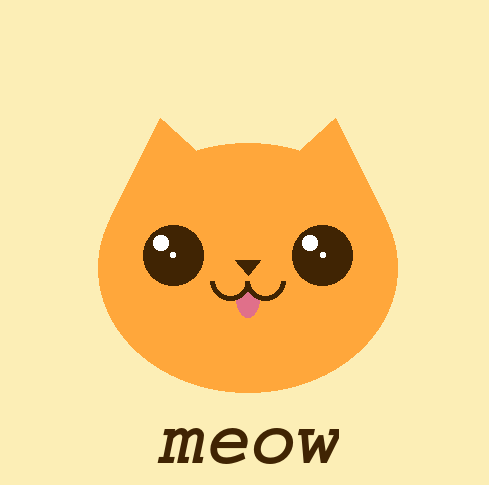
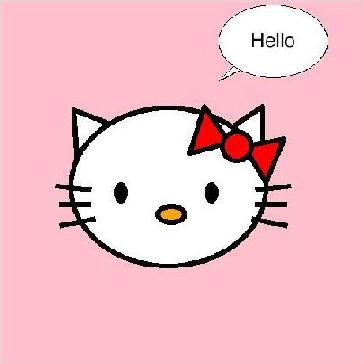
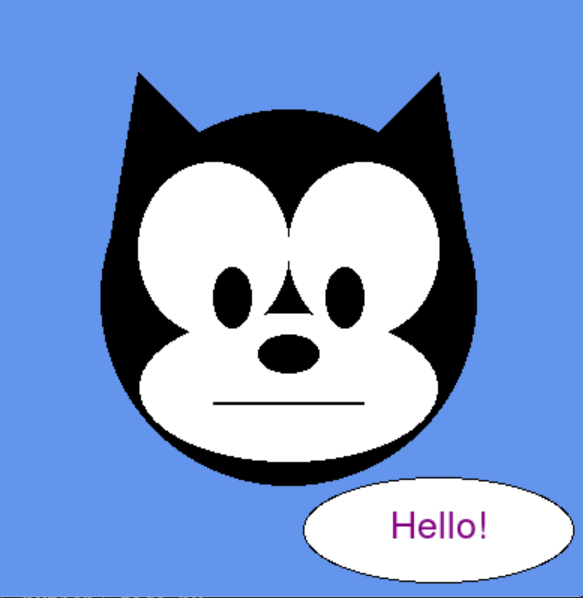
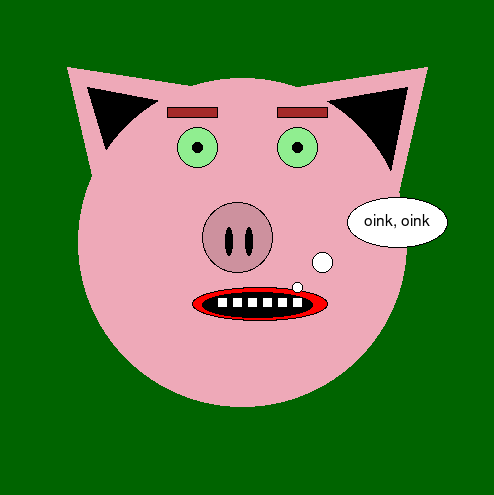
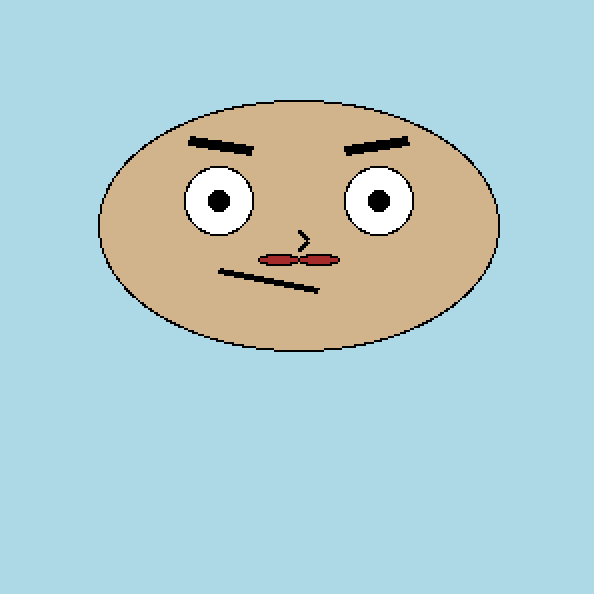
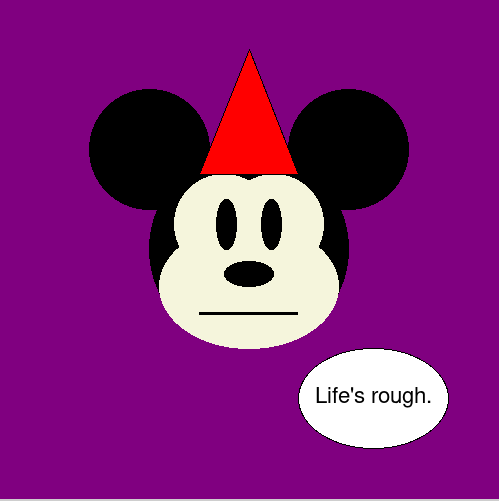
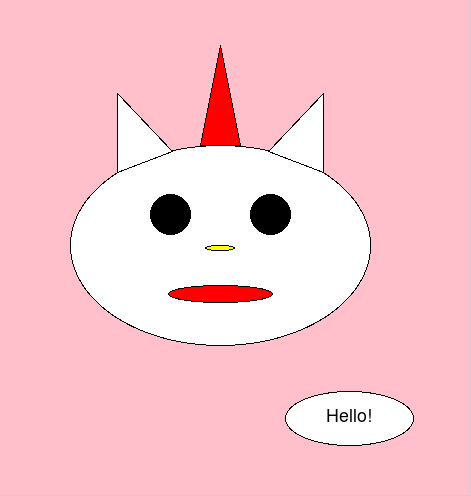
1.3. Hints/Tips
-
You need to run graphics library programs from CS machines (not remotely connected).
-
Refer to the in-class programs for examples of how to use the graphics library and some different methods of some of the classes.
-
Make use of the Zelle Graphics Reference, and other references off the course Schedule, to find methods that might be useful for setting the color and position of different objects.
-
If you are reproducing two or more identical features, for example you have two eyes that are drawn from the same shapes of the same sizes, remember you can use the
clonemethod to make a copy of a shape object and themovemethod to move a shape to a new location. -
The
getMousemethod of aWindowobject waits for a mouse click. -
Remember that the order in which you draw objects that overlap changes the final outcome of what is ultimately drawn.
2. Zombies
For this Halloween-themed program, we’ll create a small click-based game in which the player needs to click zombie faces as they appear in a grid on the screen (kind of like whack-a-mole). At a regular interval (every 0.1 seconds), each grid location has a random chance for a zombie to appear, with the probability going up over time as the game progresses. The goal for the player is to click as many faces as possible and survive as long as they can. The player loses the game when every grid location on the screen contains a zombie.
Because the rate of zombie appearance increases over time, there is no way to win the game — you simply survive as long as you can. The zombie horde is inevitable and cannot be sated:
2.1. One out of N Chance
As we’ve done with other programs, we’ll write this game one function at a time
and test as we go along. To start with, let’s write a helper function,
one_out_of_N_chance(N) , for generating a one out of N chance at random.
This function should take one parameter, an integer, representing how unlikely
the chance is to occur. The function should return a boolean value, with
True indicating that the rare one out of N chance occurred, or False
otherwise.
For example, if the user passes in 2 for N, this function would have a
1/2 (or 50%) chance of returning True. If the user passes in 10, this
function would have a 1/10 (or 10%) chance of returning True.
The randint function you
used
in lab 4 will be helpful again here, as you can check whether randint returned a specific value you might be looking for.
2.1.1. Testing
To test this function, we’ll take advantage of the law of large numbers and run a large number of trials.
For example, you might write a main function that looks like:
def main():
    successes = 0
    trials = 100000
    for i in range(trials):
        if one_out_of_N_chance(10):
            successes = successes + 1
    print("In %d trials with a 10%% chance of success..." % (trials))
    print("We succeeded %d times: %.2f%%" % (successes, 100*successes/trials))

    successes = 0
    trials = 100000
    for i in range(trials):
        if one_out_of_N_chance(2):
            successes = successes + 1
    print("In %d trials with a 50%% chance of success..." % (trials))
    print("We succeeded %d times: %.2f%%" % (successes, 100*successes/trials))
With 100,000 trials, you should see close to 50,000 successes when N is 2 and around 10,000 successes when N is 10.
2.2. Creating the Grid
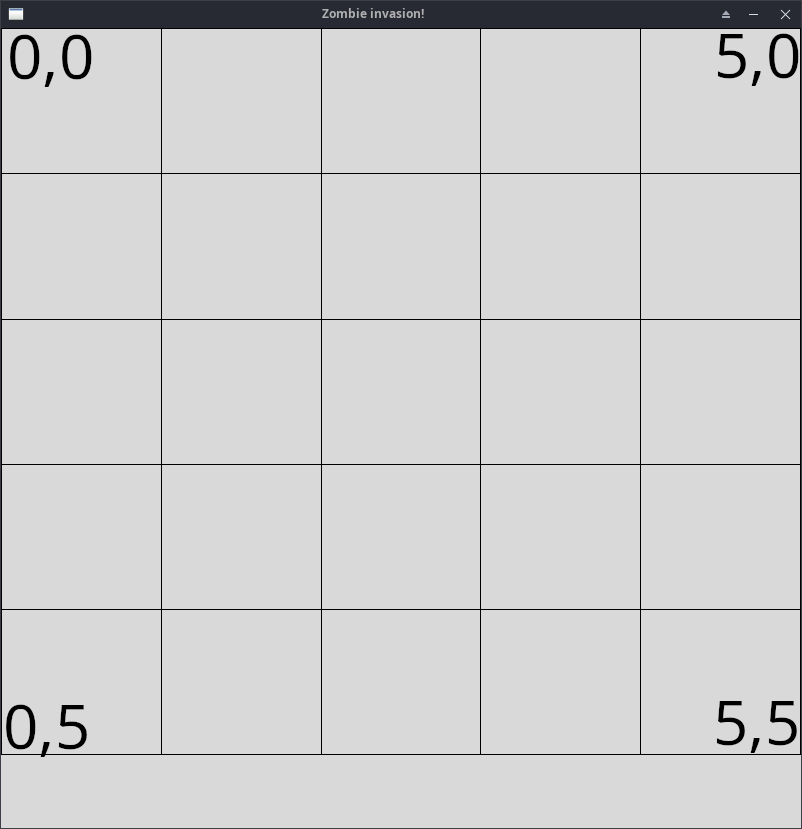
Next, we’ll write a draw_grid function to divide up a graphics window into a
5x5 grid with some space at the bottom for a timer and score. This function
will take one parameter, a
Zelle
graphics window object, and it doesn’t return anything. Instead, it has the
side effect of drawing a grid of boxes on the window.
The code provided to you in main already contains:
    # Create a graphics window and set the coordinates to make it easier
    # to draw a 5x5 grid.
    win = GraphWin("Zombie invasion!", 800, 800)
    win.setCoords(0,5.5,5,0)

    # TODO: Initialize some game variables here

    # Wait for the user to click the mouse before beginning the game.
    win.getMouse()


    # TODO: Add game logic here


    # After the game is over, pause for two seconds and then wait for a
    # mouse click so that the user can see the final score.
    sleep(2)
    win.getMouse()
    win.close()
The call to setCoords on the window object is setting the top left corner to
be coordinate 0, 0 and the lower right corner to be 5, 5.5. The extra 0.5
in the vertical direction gives us a little room below an otherwise five by
five canvas. To draw the grid, you can create and draw
Line
objects on the graphics window.
|
There are multiple ways to create the grid of lines. Don’t copy and paste
multiple calls to the |
2.2.1. Testing
To test draw_grid, call it in main on the win graphics window. You should
see an image that looks like the one above (without the coordinate grid
annotations).
2.3. Determining Grid Clicks
Now that we have a grid, we need a function to help us determine where a user is clicking. Instead of treating the grid as pairs of coordinates, we’ll be modeling the grid as one long list of 25 entries in row-major order. This ordering means that position 0 is the top left box, with 1, 2, 3, and 4 as the rest of the first row. The second row would contain (from left to right), 5, 6, 7, 8, and 9, and the pattern would continue from there, looking like:
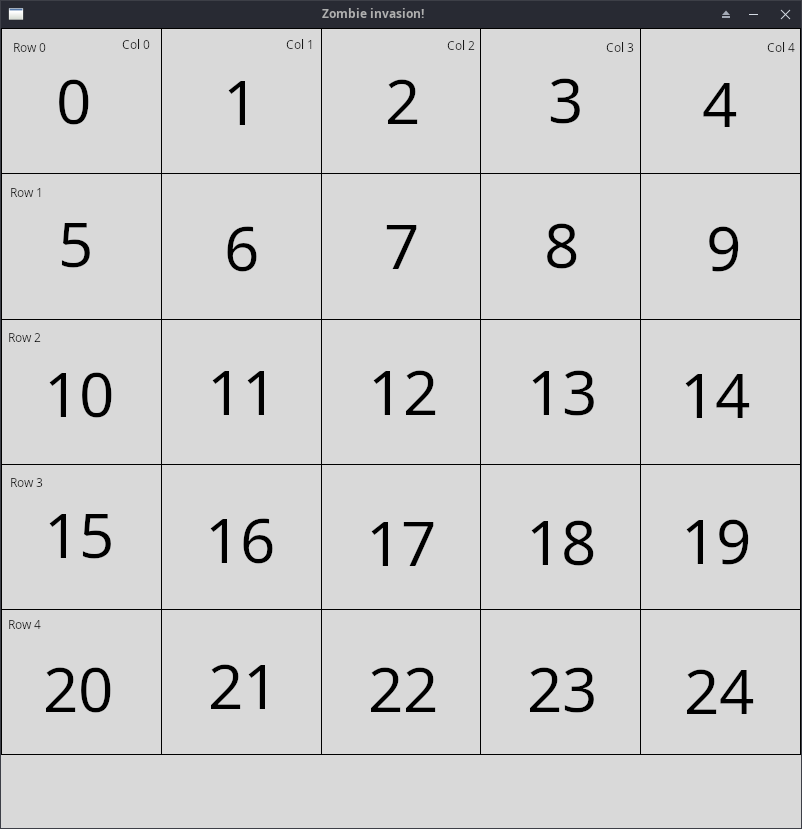
We’ll write a function named get_click_index(click) that takes a
Zelle
Point object and returns the integer for the corresponding index number
(numbered box in the image above).
You can query the Point parameter object’s x and y values to learn where the
user clicked. You may find it helpful to convert those values to integers to
remove any fractional component (e.g., 1.5 would become 1) to determine the row
and column of the click. From there, you can do some arithmetic to figure out
which index each grid location should land on. For example:
-
If the user clicks at coordinates
0.3, 0.4, converting these values to integers gives us column 0, row 0, which corresponds to index 0. -
If the user clicks at coordinates
1.5, 4.7, converting these values to integers gives us column 1, row 4, which corresponds to index 21. -
If the user clicks at coordinates
3.1, 1.6, converting these values to integers gives us column 3, row 1, which corresponds to index 8.
The index can be computed using a short formula based on the row and column values as determined above.
When working on this function, consider what the X and Y coordinates imply about where on the grid a click will land. You may find it helpful to ask yourself the following questions:
-
How many boxes are in each row?
-
What does the Y coordinate imply about which row a click lands on?
-
If you know which row you’re on, how can you get to the correct column from there?
2.3.1. Testing
To test get_click_index, you can expand your existing main function with a
loop that looks something like:
    for i in range(10):
        p = win.getMouse()
        index = get_click_index(p)
        print("%s corresponds to index %d" % (str(p), index))
This loop will allow you to test clicking on the grid 10 times, printing the
point coordinates and the index you’re mapping it to each time. Compare the
index values with the image above to ensure that get_click_index is returning
the correct index.
2.4. Checking for Game Over
Now that we can determine which box a user clicked on, we can create a list to keep track of what’s in each box. For the purposes of this game, each box can only be one of two things:
-
An empty box, represented by the
Noneobject. -
A
Zombieobject (an instance of theZombieclass, which we provided to you).
To start with, we want all the boxes to be considered empty, which we can
express to python in main as a list containing None repeated 25 times:
status = [None] * 25Our next function, continue_game(status), will take in a status list like the
one above and check the contents of each box. It should return True if the
game should continue (if there are any boxes without zombies) or False if the
game should end (all boxes contain a zombie). You can check each box to see
if it’s equal to none (e.g., == None) to determine whether it contains a
zombie or not.
2.4.1. Testing
To test this function, you can adjust the loop we added to main previously to instead look something like:
    status = [None] * 25

    while continue_game(status):
        p = win.getMouse()
        index = get_click_index(p)
        status[index] = Zombie(index)
        status[index].draw(win)

    print("Game over")
This loop will cause zombies to appear in each box the user clicks on. If
continue_game is working correctly, the program will keep going until every
box is filled, at which point it should print the "Game over" message.
|
The provided |
2.5. Random Zombie Appearance
Now that we can draw zombies, lets add them randomly rather than as the user
clicks. To help, write a function called update_game_state(timer, status,
win) that takes three parameters:
-
timer: an indication of how much time has passed (in seconds) since the game started. We’ll use this to ramp up how quickly zombies appear as the game progresses.
-
status: the same list we used in the previous function to keep track of what’s in each box (either
Noneor aZombie). -
win: the graphics window to draw zombies on, when we decide to add them.
This function doesn’t return anything. Instead, it should loop over every box, and for any box that doesn’t already have a zombie, randomly decide whether to add one. The process for adding a zombie looks identical to what we used above to assign it to a list index and then draw it.
When choosing whether or not to randomly add a zombie, you can call your
one_out_of_N_chance function with a parameter of int( 100 / timer ). Note
that the one_out_of_N_chance function expects to receive an integer, so
that call to int is important to convert any fractional result of the
division to an integer first. Using something like 100 / timer yields a low
chance of zombies appearing at first, but it quickly ramps up as timer gets
bigger. You’re welcome to experiment with other values besides 100 here, but
your game ultimately needs to be playable during grading, so we suggest using
100 for the version that you turn in.
2.5.1. Testing
To test update_game_state, you’ll need to adjust your loop to keep track of
time, periodically pause, and then call update_game_state to draw zombies:
status = [None] * 25
timer = 0.0
while continue_game(status):
sleep(0.1)
timer = timer + 0.1
update_game_state(timer, status,
win)
print("Game over")You should start to see zombies randomly appearing on the grid, increasing in frequency as time passes. Eventually every box will fill and the game will end.
2.6. Removing Zombies by Clicking
The final function, handle_click(p, status) will help our game process the
user’s mouse clicks and update the game state accordingly. This function takes
two parameters: p, the Point object where the user clicked, and status,
the list of what’s contained in each of the grid boxes (None or a Zombie
object). The function is expected to return an integer whose value is either
0 or 1 depending on whether or not the user successfully clicked on a
zombie. 1 indicates that the user clicked a zombie (and therefore will
increase their score by 1 later in main), and 0 indicates that they didn’t
click a zombie and their score won’t change.
The overall logic for this function is:
-
Check that the user clicked on a grid box (i.e., the x, y coordinates of the point are both between 0 and 5. If not, the user didn’t click on a zombie, so no further processing is needed (return 0).
-
Determine the index of the grid box that the user clicked on.
-
If there’s no zombie in that box, no further processing is needed (return 0).
-
If there is a zombie in that box, call the
.undraw()method on it, set the box to containNone, and return 1 to indicate that a zombie was successfully removed.
Once this function is complete, you have all the pieces you need to build and test the complete game.
2.7. Putting it All Together
By this point, your previous testing should have a while loop in main that is
sleeping and updating a timer. Within that loop, you’ll also need to call
win.checkMouse(), which returns either None (meaning that the user didn’t
click anything) or a Point object (meaning that they did click) that contains
the location of the click. If checkMouse() returns None, you can ignore
it. Otherwise, you can pass the Point object it returns to your
handle_click function.
Otherwise, all you’re missing is two text labels to keep track of the user’s
score and time survived. To add those, you can create
Zelle
graphics Text objects and periodically update them with the setText method
as the timer and score changes. We suggest that you create and draw the Text
objects once, outside of your main game loop. From there, you only need to
call the setText method to update their contents — there’s no need to call
draw again. If you want your text to visually resemble the demo video, you
can draw your timer text at coordinates 1.5, 5.2 and your score text at 3.5,
5.2.
|
To help make your game more playable for the user, we recommend adding a call
in Similarly, after the game ends, users are likely to be frantically clicking, so
it’s easy to accidentally click through and close the window before getting a
chance to see the final timer and score. We recommend adding something like
|
2.8. Requirements
|
The code you submit for labs is expected to follow good style practices, and to meet one of the course standards, you’ll need to demonstrate good style on six or more of the lab assignments across the semester. To meet the good style expectations, you should:
In addition, you’ll need to demonstrate good top-down design practices on two or more lab assignments across the semester. To meet the top-down design expectations, you should:
|
Your program should meet the following requirements:
-
Your program should implement the
one_out_of_N_chancefunction with the parameters, return value, and behavior as described above. -
Your program should draw a 5x5 grid of boxes that resembles the images in the
draw_gridsection above. -
Your program should implement the
get_click_indexfunction with the parameters, return value, and behavior as described above. -
Your program periodically draws zombies on the grid with a random chance.
-
The chance of zombies appearing at random increases as time progresses.
-
Clicking zombies causes them to disappear from the grid.
-
Your program uses text labels to keep track of the time and score earned by the player and the score increases as the player clicks zombies.
-
Your program’s game is playable by the grader and it ends when every grid box contains a zombie.
3. (Optional) Changing Zombie Appearance
If you’d like to change the appearance of the zombie faces, you can override
the provided face by reassigning the Zombie.build_zombie_parts function. The
code below shows how the provided faces are being created. You’re welcome to
copy this code into your zombie.py file and edit it to your liking. If you
use it, you’ll need to put it outside of any functions and before the call to
main().
# If you want to override zombie appearance, edit this (NOT required).
def build_zombie_parts(center):
    face = Circle(center, 0.45)
    face.setFill("chartreuse3")

    eyel = Circle(Point(center.getX() - 0.15, center.getY() - 0.12), 0.09)
    eyer = Circle(Point(center.getX() + 0.15, center.getY() - 0.16), 0.09)
    eyel.setFill("white")
    eyer.setFill("white")

    pupl = Circle(Point(center.getX() - 0.15, center.getY() - 0.12), 0.03)
    pupr = Circle(Point(center.getX() + 0.15, center.getY() - 0.16), 0.03)
    pupl.setFill("black")
    pupr.setFill("black")

    mouthpoints = [
        Point(center.getX() - 0.15, center.getY() + 0.18),
        Point(center.getX() + 0.15, center.getY() + 0.13),
        Point(center.getX() + 0.25, center.getY() + 0.29),
        Point(center.getX() - 0.25, center.getY() + 0.26)
    ]
    mouth = Polygon(mouthpoints)
    mouth.setFill("red")

    return [face, eyel, eyer, pupl, pupr, mouth]

Zombie.build_zombie_parts = build_zombie_parts
Answer the Questionnaire
After each lab, please complete the short Google Forms questionnaire. Please select the right lab number (Lab 06) from the dropdown menu on the first question.
Once you’re done with that, you should run handin21 again.
Submitting lab assignments
Remember to run handin21 to turn in your lab files! You may run handin21
as many times as you want. Each time it will turn in any new work. We
recommend running handin21 after you complete each program or after you
complete significant work on any one program.
Logging out
When you’re done working in the lab, you should log out of the computer you’re using.
First quit any applications you are running, including your vscode editor, the browser and the
terminal. Then click on the logout icon ( ) and choose "log out".
If you plan to leave the lab for just a few minutes, you do not need to log
out. It is, however, a good idea to lock your machine while you are gone. You
can lock your screen by clicking on the lock  icon.
PLEASE do not leave a session locked for a long period of time. Power may go
out, someone might reboot the machine, etc. You don’t want to lose any work!
icon.
PLEASE do not leave a session locked for a long period of time. Power may go
out, someone might reboot the machine, etc. You don’t want to lose any work!